
Use this checklist to make sure your email came from
PayPal:
Check the greeting:
We always address you by your first and last name, or by
the business
name on your PayPal account.
Check the link before you click:
Before you click a link in an email, hover your cursor over
the link and
check the web address. If the web address doesn't start
with
"https://www.paypal.com," don't click the link.( Try it here)
Check for requests for your personal information:
We?ll never use a PayPal email to ask you for any of the
following:
* Your bank account numbers
* Your debit and credit card numbers
* Your driver's license number
* Your email addresses
* Your full name
Check for a shipping number request:
Be on alert for emails that ask you to provide the shipping
number
before the buyer pays you.
Check for attachments or software updates:
We?ll never send an email with an attachment, or ask you to
install
software updates on your computer.
If anything on this checklist matches your email, someone
may be trying
to "spoof" or "phish" your account. Spoofing and phishing
are illegal
attempts to steal your identity, passwords, or other
personal or
financial information. If you?ve already clicked on a link
in the email
and entered personal information, you should change your
PayPal account
password and security questions immediately.
Just to be on the safe side, you should also review your
most recent
payment history for anything unusual or unauthorized. If
anything on
your account looks out of the ordinary, please let us know
about it as
soon as you can.
Here?s how you can report an unauthorized transaction:
1. Log into your PayPal account.
2. Select "Resolution Center.?
3. Click "Open a dispute."
4. Select "Unauthorized transaction," and then click
"Continue."
5. Enter or select the transaction ID for the transaction
you want to
dispute, and then click "Continue."
6. Complete the report for Unauthorized Use on a PayPal
Account, and
then click "Continue."
7. Confirm that the claim is correct, and then click
"Submit."
To learn more about protecting your account, click
"Security Center" on
any PayPal webpage.
PayPAls office
Registered Office:
5th Floor 22-24 Boulevard Royal L-2449, Luxembourg RCS
Luxembourg B 118
349.
Showing posts with label Viruses. Show all posts
Showing posts with label Viruses. Show all posts
Monday, July 19, 2010


Saturday, June 19, 2010
How to remove the Fake Windows Activation screen
This seems to be going around a lot more these days then a Fake Anti-virus program, Due to the Authenticity of the look and how convincing it really looks.
2. Once you have activated your Windows You will never be asked to do it again.
3. Never Put you Credit card number or personal Information into a Window from a pop up unless you have requested it and or have a direct Phone Number to call or contact someone.
4. The Windows Fake Activation Looks pretty real, And it's a Trojan, Ransom malware.
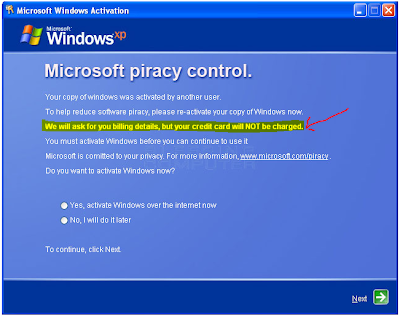
To make sure this is a fake
1. It will ask you for a Credit card period !
Microsoft will not do this on the actual Activation, They give you a choice of calling them over the phone or going to their website.
Now how to remove it.
1.Reboot your computer into Safe Mode with Networking. To do this, turn your computer off and then back on and immediately when you see anything on the screen, start tapping the F8 key on your keyboard. Eventually you will be brought to a menu similar to the one below:

2. Using the arrow keys on your keyboard, select Safe Mode with Networking and press Enter on your keyboard. See Video on how to get into Safe Mode if you need more Help Click HERE
3. By selecting with networking This should let you get on the Internet, So now you will need to Download Malwarebytes Click HERE
4. Once downloaded, close all programs and Windows on your computer.
5. Double-click on the icon on your desktop named mbam-setup.exe. This will start the installation of MBAM onto your computer.
6. Once the Install is Finished Malwarebytes will open automatically.
(make sure you have clicked on update when doing install if not you can update it NOW)
7. Once open you will see the options, Do a Full system Scan.
Note: This can take 5 min, or two hours Depending on how bad your system is infected and how fast it is.
8. When Malwarebytes has finished the scan you will get a pop up window telling you that it is complete. Click OK
9. Now you should see the results from the scan, As seen below

Just a reminder
1. Microsoft will not ask for your Credit Card Ever while installing windows Any version.2. Once you have activated your Windows You will never be asked to do it again.
3. Never Put you Credit card number or personal Information into a Window from a pop up unless you have requested it and or have a direct Phone Number to call or contact someone.
4. The Windows Fake Activation Looks pretty real, And it's a Trojan, Ransom malware.

Notice The highlighted area, They Will charge you.
To make sure this is a fake
1. It will ask you for a Credit card period !
Microsoft will not do this on the actual Activation, They give you a choice of calling them over the phone or going to their website.
Now how to remove it.
1.Reboot your computer into Safe Mode with Networking. To do this, turn your computer off and then back on and immediately when you see anything on the screen, start tapping the F8 key on your keyboard. Eventually you will be brought to a menu similar to the one below:

3. By selecting with networking This should let you get on the Internet, So now you will need to Download Malwarebytes Click HERE
4. Once downloaded, close all programs and Windows on your computer.
5. Double-click on the icon on your desktop named mbam-setup.exe. This will start the installation of MBAM onto your computer.
6. Once the Install is Finished Malwarebytes will open automatically.
(make sure you have clicked on update when doing install if not you can update it NOW)
7. Once open you will see the options, Do a Full system Scan.
Note: This can take 5 min, or two hours Depending on how bad your system is infected and how fast it is.
8. When Malwarebytes has finished the scan you will get a pop up window telling you that it is complete. Click OK
9. Now you should see the results from the scan, As seen below

10. Click on Remove selected.
11. It will open a scan log in NotePad, You can save this log or Just close it all together.
12. Once Notepad is closed scan is finished you can close Malwarebytes and Reboot your Computer in Normal Mode.
13. Now back in to Normal mode and if things seem to be running fine, Open Malwarebytes again and do a Quick scan. Should take 5-10 min. if nothing is found you should be ok and no need for another reboot.
See our website for More great Offers and Video Tutorials.
Comments welcome
Friday, April 23, 2010
msiexec.exe. What is it?
msiexec.exe. What is it?
diggMsiexec.exe is Windows® Installer.
This file is part of Windows Installer - Unicode. Msiexec.exe is developed by Microsoft Corporation. It is used to install new programs that use Windows Installer package files (MSI). It should only be running if you are running an installer. Msiexec is important for computer security and stability and should not be terminated. It’s a system and hidden file.
Msiexec.exe is usually located in the %PROGRAM_FILES% sub-folder and its usual size is 77,824 bytes.
If you are not installing anything, but msiexec is running, chances are it's a virus. Scan your computer with Malwarebytes to make sure it's not infected.
The msiexec.exe process may also be running all the time if the Windows Installer service is set to Automatic by mistake. You'll need to change the service startup type to manual. We recommend doing that using
You can also do it manually. Here's how:
1. Go to Start - Run, type in services.msc and hit Enter. A new window will open.
2. Find the Windows Installer service, right-click on it and click on Properties. A new window will open.
3. In the Startup type section, use the dropdown menu to select Manual.
4. Click Apply, then click OK
Windows XP Users: If you a getting an error saying "The Windows Installer Service Could Not Be Accessed", read this Microsoft article.
The Windows Installer Service Could Not Be Accessed"
Recommendation
Malwarebytes.org ( For Torjans, Viruses And some fake anti-virus programs)
Ccleaner.com ( does about the same as malwarebytes)
Here is a few other programs of interest Click HERE
This one is also in on of my other blogs I think, But you can get it here as well I have tested this Program and it does work. I tested it out on XP on my laptop. Since i did not have any fake viruses it didnt do nothing, So try it out if you think you have a fake Virus program It works Click HERE
--------------------------------------------------------------------------------
Do not terminate msiexec.exe if you are running an installer.
To go directly to the Online Chat room you can click HERE Enter your name and your in.
Also at the bottom of this BLOG you can leave a message or a question.
diggMsiexec.exe is Windows® Installer.
This file is part of Windows Installer - Unicode. Msiexec.exe is developed by Microsoft Corporation. It is used to install new programs that use Windows Installer package files (MSI). It should only be running if you are running an installer. Msiexec is important for computer security and stability and should not be terminated. It’s a system and hidden file.
Msiexec.exe is usually located in the %PROGRAM_FILES% sub-folder and its usual size is 77,824 bytes.
If you are not installing anything, but msiexec is running, chances are it's a virus. Scan your computer with Malwarebytes to make sure it's not infected.
The msiexec.exe process may also be running all the time if the Windows Installer service is set to Automatic by mistake. You'll need to change the service startup type to manual. We recommend doing that using
You can also do it manually. Here's how:
1. Go to Start - Run, type in services.msc and hit Enter. A new window will open.
2. Find the Windows Installer service, right-click on it and click on Properties. A new window will open.
3. In the Startup type section, use the dropdown menu to select Manual.
4. Click Apply, then click OK
Windows XP Users: If you a getting an error saying "The Windows Installer Service Could Not Be Accessed", read this Microsoft article.
The Windows Installer Service Could Not Be Accessed"
Recommendation
Malwarebytes.org ( For Torjans, Viruses And some fake anti-virus programs)
Ccleaner.com ( does about the same as malwarebytes)
Here is a few other programs of interest Click HERE
This one is also in on of my other blogs I think, But you can get it here as well I have tested this Program and it does work. I tested it out on XP on my laptop. Since i did not have any fake viruses it didnt do nothing, So try it out if you think you have a fake Virus program It works Click HERE
--------------------------------------------------------------------------------
Do not terminate msiexec.exe if you are running an installer.
To go directly to the Online Chat room you can click HERE Enter your name and your in.
Also at the bottom of this BLOG you can leave a message or a question.
Do you or have had one of These ?
These are some of the most common Fake Virus programs out. You can click on the picture or Icon to see a bigger view of the Fake Virus.
Antivirus 7

CleanUp Antivirus

Security Central

Antivirus security

Total PC Defender 2010

Vista Antivirus Pro 2010

Your PC Protector
Vista Internet Security 2010
XP Guardian
Vista Guardian 2010
Antivirus Soft
XP Internet Security 2010
Antivirus 2010
Live PC Care
Malware Defense
Internet Security 2010
Desktop Defender 2010
Security Tool

Antivirus Live
Personal Security
Cyber Security
Alpha Antivirus
Windows Enterprise Suite
Security Center
Control Center
Braviax
Windows Police Pro
Antivirus Pro 2010
PC Antispyware 2010
FraudTool.MalwareProtector.d
Winshield2009.com
Green AV
Windows Protection Suite
Total Security 2009
Windows System Suite
Antivirus BEST
System Security
Personal Antivirus
System Security 2009
Malware Doctor
Antivirus System Pro
WinPC Defender
Anti-Virus-1
Spyware Guard 2008
System Guard 2009
Antivirus 2009
Antivirus 2010
Antivirus Pro 2009
Antivirus 360
MS Antispyware 2009
IGuardPC or I Guard PC
Additional Guard
(all of them are fake antivirus which are
viruses or trojans) from your computer.
Remove Fake Antivirus is used to remove
fake antivirus which are viruses or trojans.
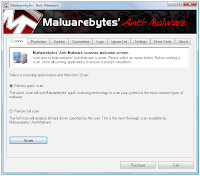
Also you can use Malwarebytes here is a Picture of the real Program
Just depends on what you like
Antivirus 7

CleanUp Antivirus

Security Central

Antivirus security

Total PC Defender 2010

Vista Antivirus Pro 2010

Your PC Protector
Vista Internet Security 2010
XP Guardian
Vista Guardian 2010
Antivirus Soft
XP Internet Security 2010
Antivirus 2010
Live PC Care
Malware Defense
Internet Security 2010
Desktop Defender 2010
Security Tool

Antivirus Live
Personal Security
Cyber Security
Alpha Antivirus
Windows Enterprise Suite
Security Center
Control Center
Braviax
Windows Police Pro
Antivirus Pro 2010
PC Antispyware 2010
FraudTool.MalwareProtector.d
Winshield2009.com
Green AV
Windows Protection Suite
Total Security 2009
Windows System Suite
Antivirus BEST
System Security
Personal Antivirus
System Security 2009
Malware Doctor
Antivirus System Pro
WinPC Defender
Anti-Virus-1
Spyware Guard 2008
System Guard 2009
Antivirus 2009
Antivirus 2010
Antivirus Pro 2009
Antivirus 360
MS Antispyware 2009
IGuardPC or I Guard PC
Additional Guard
(all of them are fake antivirus which are
viruses or trojans) from your computer.
Remove Fake Antivirus is used to remove
fake antivirus which are viruses or trojans.
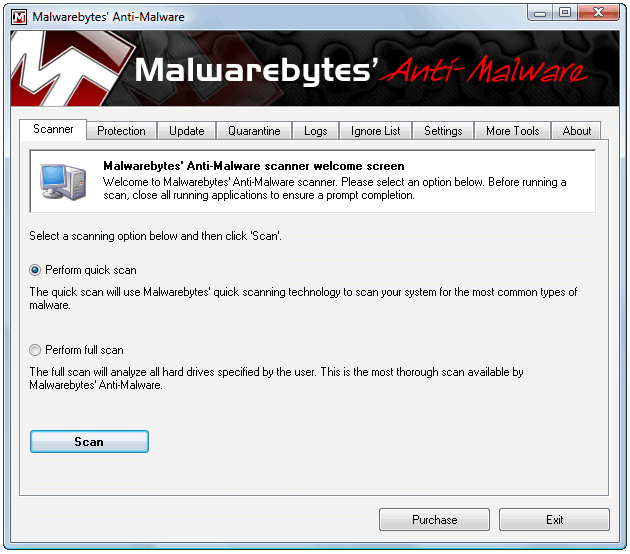
Also you can use Malwarebytes here is a Picture of the real Program
Just depends on what you like
Sunday, April 18, 2010
Hide your IP address
Did you know your IP address is exposed every time you visit a website? Your IP address is your online identity and could be used by hackers to break into your computer, steal personal information, or commit other crimes against you. Hide My IP allows you to surf anonymously, change your IP address, prevent identity theft, and guard against hacker intrusions, all with the click of a button.
You can go to a website called Whats MY IP address Click HERE and it will show you what it is.
Then once you download the free trial (14days) you can go back to the site with the program running and see what it changed it to.
Now remember some sites will not let you go to them if your IP is blocked or can not be traced.
This just gives you a fake IP as if you do have one.
To see how this works Click HERE to get your free trial Today.
You can go to a website called Whats MY IP address Click HERE and it will show you what it is.
Then once you download the free trial (14days) you can go back to the site with the program running and see what it changed it to.
Now remember some sites will not let you go to them if your IP is blocked or can not be traced.
This just gives you a fake IP as if you do have one.
To see how this works Click HERE to get your free trial Today.
Monday, April 12, 2010

Wednesday, March 31, 2010
Malwarebytes
http://www.youtube.com/watch?v=VpyoY7MT8xY
Free to use,
And works on all windows ver.
Check it out if you think you have a virus or a trojan.
And if you do not think you have one, Try it anyways just to make sure.
Description of Malware
AdwareAdware (or spyware) is a small program that is designed to show advertisements (in various form and degrees of intrusiveness) on your computer. It often reports personal information back to its owners. As a result your sense of privacy can be violated.
BackdoorA backdoor is a small malicious program that is used to gain access to a computer by bypassing the computer access security mechanisms. It gives the attacker almost unlimited rights. While it can be used to spy on a user, it is mainly used to install other malware on the system.
HeuristicA technique designed to detect malware by empirical means but without having the specific data.
MalwareA generic name for all types of malicious programs: adware, backdoors, rogues, trojans, viruses and worms.
RogueA rogue program is a malicious program that is disguised, for instance, as trustworthy anti-spyware programs or registry cleaners. But these programs are only put on the market to scare you into buying these programs because they make exaggerated claims about the safety of your computer or, worse still, give erroneous scan results or put their own malware in your system.
TrojanA trojan (or Trojan horse) is a small malicious program that pretends to have a particular function, but that only shows its real purpose after execution and that purpose is often destructive. Trojans cannot multiply themselves, which differentiates them from viruses and worms.
VirusA virus is a small malicious program that multiplies and is capable to attach itself to other programs after being executed. It then causes an infection and causes various degrees of damage to your computer.
WormA worm is often characterized as a malicious application that will use a host machine to infect other machines. Therefore worms can create enormous damage on networks with multiple computers.

Free to use,
And works on all windows ver.
Check it out if you think you have a virus or a trojan.
And if you do not think you have one, Try it anyways just to make sure.
Description of Malware
AdwareAdware (or spyware) is a small program that is designed to show advertisements (in various form and degrees of intrusiveness) on your computer. It often reports personal information back to its owners. As a result your sense of privacy can be violated.
BackdoorA backdoor is a small malicious program that is used to gain access to a computer by bypassing the computer access security mechanisms. It gives the attacker almost unlimited rights. While it can be used to spy on a user, it is mainly used to install other malware on the system.
HeuristicA technique designed to detect malware by empirical means but without having the specific data.
MalwareA generic name for all types of malicious programs: adware, backdoors, rogues, trojans, viruses and worms.
RogueA rogue program is a malicious program that is disguised, for instance, as trustworthy anti-spyware programs or registry cleaners. But these programs are only put on the market to scare you into buying these programs because they make exaggerated claims about the safety of your computer or, worse still, give erroneous scan results or put their own malware in your system.
TrojanA trojan (or Trojan horse) is a small malicious program that pretends to have a particular function, but that only shows its real purpose after execution and that purpose is often destructive. Trojans cannot multiply themselves, which differentiates them from viruses and worms.
VirusA virus is a small malicious program that multiplies and is capable to attach itself to other programs after being executed. It then causes an infection and causes various degrees of damage to your computer.
WormA worm is often characterized as a malicious application that will use a host machine to infect other machines. Therefore worms can create enormous damage on networks with multiple computers.
Friday, March 26, 2010
Spyware

Have Used Alot of Atni-Virus Programs Myself.
I have recommended a few out.
And StopZilla is one I do would recommend.
I have seen this one Stop a virus that some of the others will not.
Anti-Virus programs To me are more of how user friendly they are. Just like any operating system Some people Like XP or Vista and even Windows 7
StopZilla is compatiable with all mentioned windows above.
Just simply Click on the Above picture and See how it works on your system

Tuesday, March 9, 2010
Dont through that old hard drive away, If it still works their great to use as a slave drive. (second Hard drive) You can use it to store pics, music and a back up on. Not to mention change the paging file to it and make the Primary hard drive faster. http://md4urpc.com/videos.aspxhere is a video on how to make a slave drive on your computer,
PC Repairs http://www.ustream.tv/recorded/5020589This Video is to show you how to hook up your old Hard drive to a usb port.If the old hard drive if a laptop or a desktop, works on both.I'm running windows 7, and this works great, It does work on XP an Vista,Make sure you have a 2.0 USB port.
Thanks,MD4URPC.com

PC Repairs http://www.ustream.tv/recorded/5020589This Video is to show you how to hook up your old Hard drive to a usb port.If the old hard drive if a laptop or a desktop, works on both.I'm running windows 7, and this works great, It does work on XP an Vista,Make sure you have a 2.0 USB port.
Thanks,MD4URPC.com
Subscribe to:
Posts (Atom)


