
Using ICS (Internet Connection Sharing)
In this articleHow does ICS work?
Enabling ICS
Configure TCP/IP
ICS and VPN connections
ICS and ad hoc networks
If you want to share one Internet connection among several computers, you have two options:
Use Internet Connection Sharing (ICS).
Use a router.
How does ICS work?
First, you'll need one computer, called the host computer, that's connected to the Internet and that has a separate connection to the other computers on your network. You'll enable ICS on the Internet connection. The other computers on your network then connect to the host computer, and from there to the Internet through the host computer's shared Internet connection.
A network using Internet Connection Sharing (ICS)
Enabling ICS
To enable ICS, on your host computer:
Click to open Network Connections.
Right-click the connection that you want to share, and then click Properties. If you're prompted for an administrator password or confirmation, type the password or provide confirmation.
Click the Sharing tab, and then select the Allow other network users to connect through this computer’s Internet connection check box.
Notes
The Sharing tab won't be available if you have only one network connection.
You can choose whether to select the Allow other network users to control or disable the shared Internet connection check box.
Optionally, to allow other network users to use services running on your network, click Settings, and then select the services you want to allow.
When you enable ICS, your local area network (LAN) connection gets a new static IP address and configuration, so you'll need to reestablish any TCP/IP connections between your host computer and the other network computers.
To test your network and Internet connection, see if you can share files between computers and make sure each computer can reach a website.
Configure TCP/IP
To use ICS, make sure the local area network (LAN) connection on each network computer is configured to get an IP address automatically. To do this:
Click to open Network Connections.
Right-click the LAN connection, and then click Properties. If you're prompted for an administrator password or confirmation, type the password or provide confirmation.
Click Internet Protocol Version 4 (TCP/IPv4) or Internet Protocol Version 6 (TCP/IPv6), and then click Properties.
Click Obtain an IP address automatically or Obtain an IPv6 address automatically, and then click OK.
The Internet options on your network computers should also be configured for ICS. For more information, see Change Internet settings for ICS (Internet Connection Sharing).
Don't use ICS on a network with domain controllers, DNS servers, gateways, or DHCP servers. And don't use ICS on systems configured for static IP addresses.
ICS and VPN connections
If you create a virtual private network (VPN) connection on your host computer to a corporate network and then enable ICS on that connection, all Internet traffic is routed to the corporate network and all of the computers on your home network can access the corporate network. If you don't enable ICS on the VPN connection, other computers won't have access to the Internet or corporate network while the VPN connection is active on the host computer.
ICS and ad hoc networks
If you share your Internet connection on an ad hoc network, ICS will be disabled if:
You disconnect from the ad hoc network.
You create a new ad hoc network without disconnecting from the ad hoc network for which you enabled ICS.
You log off and then log back on (without disconnecting from the ad hoc network).
Showing posts with label hackers. Show all posts
Showing posts with label hackers. Show all posts
Wednesday, September 22, 2010


Sunday, April 18, 2010
Hide your IP address
Did you know your IP address is exposed every time you visit a website? Your IP address is your online identity and could be used by hackers to break into your computer, steal personal information, or commit other crimes against you. Hide My IP allows you to surf anonymously, change your IP address, prevent identity theft, and guard against hacker intrusions, all with the click of a button.
You can go to a website called Whats MY IP address Click HERE and it will show you what it is.
Then once you download the free trial (14days) you can go back to the site with the program running and see what it changed it to.
Now remember some sites will not let you go to them if your IP is blocked or can not be traced.
This just gives you a fake IP as if you do have one.
To see how this works Click HERE to get your free trial Today.
You can go to a website called Whats MY IP address Click HERE and it will show you what it is.
Then once you download the free trial (14days) you can go back to the site with the program running and see what it changed it to.
Now remember some sites will not let you go to them if your IP is blocked or can not be traced.
This just gives you a fake IP as if you do have one.
To see how this works Click HERE to get your free trial Today.
"How do I change my IP address?"
"How do I change my IP address?" and "Can I change my IP address?" are probably the most commonly asked questions. Please attempt the following then, if that does not work, visit the Change IP Address forum.
Before trying any other methods to change your IP address, try turning off (or unplugging the power of) your Cable/DSL modem for five minutes. In many cases this will change your IP address. However, if that does not change your IP address, repeat the process for 8 hours (overnight works well) instead of 5 minutes. Hopefully this will result in an IP change.
If the above does not result in your IP address changing, please look through the below for the situation that best matches yours and attempt to change your IP address that way. Unfortunately you are not able to get your IP address to change in all cases, as it is ultimate determined by your ISP's DHCP configuration (when you've got a dynamically assigned IP address, that is.)
Windows - Computer connected directly to the modem
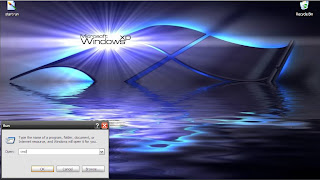
Get to a command prompt. (START, run, cmd).

Type "ipconfig /release" (without the quotes, on the command line by itself).
Type "ipconfig /renew" (without the quotes, on the command line by itself).

Windows (second option) - Computer connected directly to the modem
Get to a command prompt. (START, run, cmd).
Type "ipconfig /release" (without the quotes).
Shut down computer.
Turn off computer.
Turn off all ethernet hubs/switches.
Turn off cable/DSL modem.
Leave off overnight.
Turn everything back on.
Network with Router
Log into the router's admin console. (Often http://192.168.1.1/)
Release the IP address. (Method varies by router manufacturer)
Turn off router, ethernet hubs/switches, and the cable/DSL modem.
Leave off overnight.
Turn everything back on.
If you are using a cable/DSL modem and a router, you may wish to connect your computer directly to the cable/DSL modem. Please note that this could significantly impact your system security. This allows your ISP's DHCP to issue you a new (hopefully changed) IP address based of the (hardware) MAC address of your computer's ethernet card.
If all the above has not worked to change your IP address and you have a router, check and see if there is a "Clone MAC Address" option. Using it should change your IP address; however, you'll only be able to do it once (in most cases).
These will not work in all cases. If all else fails contact your internet service provider (ISP) and ask them if they are able to change your IP address or how long your connection needs to be off for your IP address to change.
Click HERE to check your internet Speed From Cnet Reviews.
Also known as Downloads.com
Before trying any other methods to change your IP address, try turning off (or unplugging the power of) your Cable/DSL modem for five minutes. In many cases this will change your IP address. However, if that does not change your IP address, repeat the process for 8 hours (overnight works well) instead of 5 minutes. Hopefully this will result in an IP change.
If the above does not result in your IP address changing, please look through the below for the situation that best matches yours and attempt to change your IP address that way. Unfortunately you are not able to get your IP address to change in all cases, as it is ultimate determined by your ISP's DHCP configuration (when you've got a dynamically assigned IP address, that is.)
Windows - Computer connected directly to the modem
Get to a command prompt. (START, run, cmd).

Start then Click Run

Once you click on Run this window opens and you type in CMD. it means command.
Type "ipconfig /release" (without the quotes, on the command line by itself).
Type "ipconfig /renew" (without the quotes, on the command line by itself).

Once Iprelease is typed into the Command line it should kick you off line for a moment. Then type in IPRENEW and you should reconnect.
Get to a command prompt. (START, run, cmd).
Type "ipconfig /release" (without the quotes).
Shut down computer.
Turn off computer.
Turn off all ethernet hubs/switches.
Turn off cable/DSL modem.
Leave off overnight.
Turn everything back on.
Network with Router
Log into the router's admin console. (Often http://192.168.1.1/)
Release the IP address. (Method varies by router manufacturer)
Turn off router, ethernet hubs/switches, and the cable/DSL modem.
Leave off overnight.
Turn everything back on.
If you are using a cable/DSL modem and a router, you may wish to connect your computer directly to the cable/DSL modem. Please note that this could significantly impact your system security. This allows your ISP's DHCP to issue you a new (hopefully changed) IP address based of the (hardware) MAC address of your computer's ethernet card.
If all the above has not worked to change your IP address and you have a router, check and see if there is a "Clone MAC Address" option. Using it should change your IP address; however, you'll only be able to do it once (in most cases).
These will not work in all cases. If all else fails contact your internet service provider (ISP) and ask them if they are able to change your IP address or how long your connection needs to be off for your IP address to change.
Click HERE to check your internet Speed From Cnet Reviews.
Also known as Downloads.com
Subscribe to:
Posts (Atom)


