
Using ICS (Internet Connection Sharing)
In this articleHow does ICS work?
Enabling ICS
Configure TCP/IP
ICS and VPN connections
ICS and ad hoc networks
If you want to share one Internet connection among several computers, you have two options:
Use Internet Connection Sharing (ICS).
Use a router.
How does ICS work?
First, you'll need one computer, called the host computer, that's connected to the Internet and that has a separate connection to the other computers on your network. You'll enable ICS on the Internet connection. The other computers on your network then connect to the host computer, and from there to the Internet through the host computer's shared Internet connection.
A network using Internet Connection Sharing (ICS)
Enabling ICS
To enable ICS, on your host computer:
Click to open Network Connections.
Right-click the connection that you want to share, and then click Properties. If you're prompted for an administrator password or confirmation, type the password or provide confirmation.
Click the Sharing tab, and then select the Allow other network users to connect through this computer’s Internet connection check box.
Notes
The Sharing tab won't be available if you have only one network connection.
You can choose whether to select the Allow other network users to control or disable the shared Internet connection check box.
Optionally, to allow other network users to use services running on your network, click Settings, and then select the services you want to allow.
When you enable ICS, your local area network (LAN) connection gets a new static IP address and configuration, so you'll need to reestablish any TCP/IP connections between your host computer and the other network computers.
To test your network and Internet connection, see if you can share files between computers and make sure each computer can reach a website.
Configure TCP/IP
To use ICS, make sure the local area network (LAN) connection on each network computer is configured to get an IP address automatically. To do this:
Click to open Network Connections.
Right-click the LAN connection, and then click Properties. If you're prompted for an administrator password or confirmation, type the password or provide confirmation.
Click Internet Protocol Version 4 (TCP/IPv4) or Internet Protocol Version 6 (TCP/IPv6), and then click Properties.
Click Obtain an IP address automatically or Obtain an IPv6 address automatically, and then click OK.
The Internet options on your network computers should also be configured for ICS. For more information, see Change Internet settings for ICS (Internet Connection Sharing).
Don't use ICS on a network with domain controllers, DNS servers, gateways, or DHCP servers. And don't use ICS on systems configured for static IP addresses.
ICS and VPN connections
If you create a virtual private network (VPN) connection on your host computer to a corporate network and then enable ICS on that connection, all Internet traffic is routed to the corporate network and all of the computers on your home network can access the corporate network. If you don't enable ICS on the VPN connection, other computers won't have access to the Internet or corporate network while the VPN connection is active on the host computer.
ICS and ad hoc networks
If you share your Internet connection on an ad hoc network, ICS will be disabled if:
You disconnect from the ad hoc network.
You create a new ad hoc network without disconnecting from the ad hoc network for which you enabled ICS.
You log off and then log back on (without disconnecting from the ad hoc network).
Showing posts with label windows 8. Show all posts
Showing posts with label windows 8. Show all posts
Wednesday, September 22, 2010
Tuesday, July 20, 2010
How to use Windows Live Mail and Import Outlook Contacts, windows 7 and Vista
If you need a mail client, install Windows Live Mail which supports messages and contacts from Outlook Express, you can import them into Windows Live Mail.
Importing your e-mail, contacts, and calendar into Windows Live Mail:
http://www.sevenforums.com/tutorials/3798-windows-live-mail-import-windows-mail-messages.html
Windows Live Mail - Import Windows Mail Messages
How to Import Vista Contacts and Contact Groups into Windows Live Mail
http://www.sevenforums.com/tutorials/3818-windows-live-mail-import-vista-contacts-contact-groups.html
How to Identify Your Windows Mail, Live Mail or Outlook Express Store Folder
http://email.about.com/od/outlookexpresstips/ss/wt101202.htm
The links might reference Windows Vista, but the same principles apply to Windows 7 too.
Importing your e-mail, contacts, and calendar into Windows Live Mail:
http://www.sevenforums.com/tutorials/3798-windows-live-mail-import-windows-mail-messages.html
Windows Live Mail - Import Windows Mail Messages
How to Import Vista Contacts and Contact Groups into Windows Live Mail
http://www.sevenforums.com/tutorials/3818-windows-live-mail-import-vista-contacts-contact-groups.html
How to Identify Your Windows Mail, Live Mail or Outlook Express Store Folder
http://email.about.com/od/outlookexpresstips/ss/wt101202.htm
The links might reference Windows Vista, but the same principles apply to Windows 7 too.
Monday, July 19, 2010
PAyPal Security Through EMAILS .Don't get scammed
Use this checklist to make sure your email came from
PayPal:
Check the greeting:
We always address you by your first and last name, or by
the business
name on your PayPal account.
Check the link before you click:
Before you click a link in an email, hover your cursor over
the link and
check the web address. If the web address doesn't start
with
"https://www.paypal.com," don't click the link.( Try it here)
Check for requests for your personal information:
We?ll never use a PayPal email to ask you for any of the
following:
* Your bank account numbers
* Your debit and credit card numbers
* Your driver's license number
* Your email addresses
* Your full name
Check for a shipping number request:
Be on alert for emails that ask you to provide the shipping
number
before the buyer pays you.
Check for attachments or software updates:
We?ll never send an email with an attachment, or ask you to
install
software updates on your computer.
If anything on this checklist matches your email, someone
may be trying
to "spoof" or "phish" your account. Spoofing and phishing
are illegal
attempts to steal your identity, passwords, or other
personal or
financial information. If you?ve already clicked on a link
in the email
and entered personal information, you should change your
PayPal account
password and security questions immediately.
Just to be on the safe side, you should also review your
most recent
payment history for anything unusual or unauthorized. If
anything on
your account looks out of the ordinary, please let us know
about it as
soon as you can.
Here?s how you can report an unauthorized transaction:
1. Log into your PayPal account.
2. Select "Resolution Center.?
3. Click "Open a dispute."
4. Select "Unauthorized transaction," and then click
"Continue."
5. Enter or select the transaction ID for the transaction
you want to
dispute, and then click "Continue."
6. Complete the report for Unauthorized Use on a PayPal
Account, and
then click "Continue."
7. Confirm that the claim is correct, and then click
"Submit."
To learn more about protecting your account, click
"Security Center" on
any PayPal webpage.
PayPAls office
Registered Office:
5th Floor 22-24 Boulevard Royal L-2449, Luxembourg RCS
Luxembourg B 118
349.
PayPal:
Check the greeting:
We always address you by your first and last name, or by
the business
name on your PayPal account.
Check the link before you click:
Before you click a link in an email, hover your cursor over
the link and
check the web address. If the web address doesn't start
with
"https://www.paypal.com," don't click the link.( Try it here)
Check for requests for your personal information:
We?ll never use a PayPal email to ask you for any of the
following:
* Your bank account numbers
* Your debit and credit card numbers
* Your driver's license number
* Your email addresses
* Your full name
Check for a shipping number request:
Be on alert for emails that ask you to provide the shipping
number
before the buyer pays you.
Check for attachments or software updates:
We?ll never send an email with an attachment, or ask you to
install
software updates on your computer.
If anything on this checklist matches your email, someone
may be trying
to "spoof" or "phish" your account. Spoofing and phishing
are illegal
attempts to steal your identity, passwords, or other
personal or
financial information. If you?ve already clicked on a link
in the email
and entered personal information, you should change your
PayPal account
password and security questions immediately.
Just to be on the safe side, you should also review your
most recent
payment history for anything unusual or unauthorized. If
anything on
your account looks out of the ordinary, please let us know
about it as
soon as you can.
Here?s how you can report an unauthorized transaction:
1. Log into your PayPal account.
2. Select "Resolution Center.?
3. Click "Open a dispute."
4. Select "Unauthorized transaction," and then click
"Continue."
5. Enter or select the transaction ID for the transaction
you want to
dispute, and then click "Continue."
6. Complete the report for Unauthorized Use on a PayPal
Account, and
then click "Continue."
7. Confirm that the claim is correct, and then click
"Submit."
To learn more about protecting your account, click
"Security Center" on
any PayPal webpage.
PayPAls office
Registered Office:
5th Floor 22-24 Boulevard Royal L-2449, Luxembourg RCS
Luxembourg B 118
349.
Labels:
Anti-spyware,
md4urpc,
money,
system restore,
Tech support,
Tips,
trojan,
trojans,
upgrade,
Viruses,
Vista,
windows 7,
windows 7 starter,
windows 8,
wireless
0
comments


Saturday, June 19, 2010
How to remove the Fake Windows Activation screen
This seems to be going around a lot more these days then a Fake Anti-virus program, Due to the Authenticity of the look and how convincing it really looks.
2. Once you have activated your Windows You will never be asked to do it again.
3. Never Put you Credit card number or personal Information into a Window from a pop up unless you have requested it and or have a direct Phone Number to call or contact someone.
4. The Windows Fake Activation Looks pretty real, And it's a Trojan, Ransom malware.
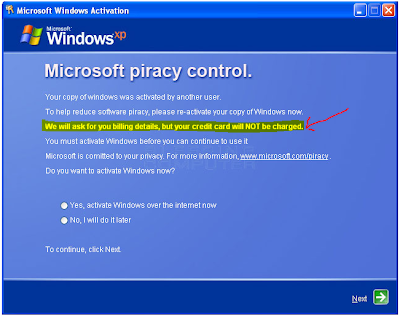
To make sure this is a fake
1. It will ask you for a Credit card period !
Microsoft will not do this on the actual Activation, They give you a choice of calling them over the phone or going to their website.
Now how to remove it.
1.Reboot your computer into Safe Mode with Networking. To do this, turn your computer off and then back on and immediately when you see anything on the screen, start tapping the F8 key on your keyboard. Eventually you will be brought to a menu similar to the one below:

2. Using the arrow keys on your keyboard, select Safe Mode with Networking and press Enter on your keyboard. See Video on how to get into Safe Mode if you need more Help Click HERE
3. By selecting with networking This should let you get on the Internet, So now you will need to Download Malwarebytes Click HERE
4. Once downloaded, close all programs and Windows on your computer.
5. Double-click on the icon on your desktop named mbam-setup.exe. This will start the installation of MBAM onto your computer.
6. Once the Install is Finished Malwarebytes will open automatically.
(make sure you have clicked on update when doing install if not you can update it NOW)
7. Once open you will see the options, Do a Full system Scan.
Note: This can take 5 min, or two hours Depending on how bad your system is infected and how fast it is.
8. When Malwarebytes has finished the scan you will get a pop up window telling you that it is complete. Click OK
9. Now you should see the results from the scan, As seen below

Just a reminder
1. Microsoft will not ask for your Credit Card Ever while installing windows Any version.2. Once you have activated your Windows You will never be asked to do it again.
3. Never Put you Credit card number or personal Information into a Window from a pop up unless you have requested it and or have a direct Phone Number to call or contact someone.
4. The Windows Fake Activation Looks pretty real, And it's a Trojan, Ransom malware.

Notice The highlighted area, They Will charge you.
To make sure this is a fake
1. It will ask you for a Credit card period !
Microsoft will not do this on the actual Activation, They give you a choice of calling them over the phone or going to their website.
Now how to remove it.
1.Reboot your computer into Safe Mode with Networking. To do this, turn your computer off and then back on and immediately when you see anything on the screen, start tapping the F8 key on your keyboard. Eventually you will be brought to a menu similar to the one below:

3. By selecting with networking This should let you get on the Internet, So now you will need to Download Malwarebytes Click HERE
4. Once downloaded, close all programs and Windows on your computer.
5. Double-click on the icon on your desktop named mbam-setup.exe. This will start the installation of MBAM onto your computer.
6. Once the Install is Finished Malwarebytes will open automatically.
(make sure you have clicked on update when doing install if not you can update it NOW)
7. Once open you will see the options, Do a Full system Scan.
Note: This can take 5 min, or two hours Depending on how bad your system is infected and how fast it is.
8. When Malwarebytes has finished the scan you will get a pop up window telling you that it is complete. Click OK
9. Now you should see the results from the scan, As seen below

10. Click on Remove selected.
11. It will open a scan log in NotePad, You can save this log or Just close it all together.
12. Once Notepad is closed scan is finished you can close Malwarebytes and Reboot your Computer in Normal Mode.
13. Now back in to Normal mode and if things seem to be running fine, Open Malwarebytes again and do a Quick scan. Should take 5-10 min. if nothing is found you should be ok and no need for another reboot.
See our website for More great Offers and Video Tutorials.
Comments welcome
Sunday, April 25, 2010
Windows 8 or Windows.Next ?
Windows 8( Windows.Next) is a future version of Microsoft Windows, expected for release in 2012 or later.[1] It will succeed Windows 7. It will be built on the same kernel MinWin in which the Windows 7 is being developed.
 In Windows 8,(Windows.Next) there is going to be a complete overhaul of the user interface. A new user experience is being developed for Windows 8. According to some sources, Windows 8 will not include Windows Explorer.
 Windows 8 is planned to bring a revamp of Windows Test Technologies (WTT), the technologies used to test Windows. The WTT team wants to address all the major testing problems by developing a "truly scalable and reliable testing infrastructure.
Maybe Windows Can learn something from Linux, The Operating System Is free for one thing.
If you have Never used or seen linux or Ubuntu it is a nice Program for Free. But not for the average user.
For Most people the ones that like to surf the net and Just check their Emails or play a game online. Ubuntu might not be for them, Now for the Geeks if you will or the more tech users if not or should be using this OS.
As good as it is I'm just surprised it's Free. Now you can even Get it installed when you buy a new computer. HP offers it.

The End Is Near For XP
Windows XP, the world’s most used operating system. Fast, clean and rock solid, it’s great for getting stuff done. However, like all good things, it has to come to an end.
Windows XP mysteriously dissaperaed from all store shelves last June, however, like all Microsoft’s products, it continued to receive support for about a year afterwards. Then, it happened.
As of today all mainstream Windows XP users will get almost completely cut off from support. Only critical updates will be received. People who want to continue to get support will have to pay for Microsoft’s extended service plan, which ends April 8,2014. Then it’s hello Windows 7!
Personal users and Business will need to get ready to Update their systems after 4/08/2014 since none will be available to them for Windows XP Can we say R.I.P. XP !


Maybe Windows Can learn something from Linux, The Operating System Is free for one thing.
If you have Never used or seen linux or Ubuntu it is a nice Program for Free. But not for the average user.
For Most people the ones that like to surf the net and Just check their Emails or play a game online. Ubuntu might not be for them, Now for the Geeks if you will or the more tech users if not or should be using this OS.
As good as it is I'm just surprised it's Free. Now you can even Get it installed when you buy a new computer. HP offers it.

Take a Tour of Ubuntu Click HERE
The End Is Near For XP
Windows XP, the world’s most used operating system. Fast, clean and rock solid, it’s great for getting stuff done. However, like all good things, it has to come to an end.
Windows XP mysteriously dissaperaed from all store shelves last June, however, like all Microsoft’s products, it continued to receive support for about a year afterwards. Then, it happened.
As of today all mainstream Windows XP users will get almost completely cut off from support. Only critical updates will be received. People who want to continue to get support will have to pay for Microsoft’s extended service plan, which ends April 8,2014. Then it’s hello Windows 7!
Personal users and Business will need to get ready to Update their systems after 4/08/2014 since none will be available to them for Windows XP Can we say R.I.P. XP !
Subscribe to:
Posts (Atom)


