
Using ICS (Internet Connection Sharing)
In this articleHow does ICS work?
Enabling ICS
Configure TCP/IP
ICS and VPN connections
ICS and ad hoc networks
If you want to share one Internet connection among several computers, you have two options:
Use Internet Connection Sharing (ICS).
Use a router.
How does ICS work?
First, you'll need one computer, called the host computer, that's connected to the Internet and that has a separate connection to the other computers on your network. You'll enable ICS on the Internet connection. The other computers on your network then connect to the host computer, and from there to the Internet through the host computer's shared Internet connection.
A network using Internet Connection Sharing (ICS)
Enabling ICS
To enable ICS, on your host computer:
Click to open Network Connections.
Right-click the connection that you want to share, and then click Properties. If you're prompted for an administrator password or confirmation, type the password or provide confirmation.
Click the Sharing tab, and then select the Allow other network users to connect through this computer’s Internet connection check box.
Notes
The Sharing tab won't be available if you have only one network connection.
You can choose whether to select the Allow other network users to control or disable the shared Internet connection check box.
Optionally, to allow other network users to use services running on your network, click Settings, and then select the services you want to allow.
When you enable ICS, your local area network (LAN) connection gets a new static IP address and configuration, so you'll need to reestablish any TCP/IP connections between your host computer and the other network computers.
To test your network and Internet connection, see if you can share files between computers and make sure each computer can reach a website.
Configure TCP/IP
To use ICS, make sure the local area network (LAN) connection on each network computer is configured to get an IP address automatically. To do this:
Click to open Network Connections.
Right-click the LAN connection, and then click Properties. If you're prompted for an administrator password or confirmation, type the password or provide confirmation.
Click Internet Protocol Version 4 (TCP/IPv4) or Internet Protocol Version 6 (TCP/IPv6), and then click Properties.
Click Obtain an IP address automatically or Obtain an IPv6 address automatically, and then click OK.
The Internet options on your network computers should also be configured for ICS. For more information, see Change Internet settings for ICS (Internet Connection Sharing).
Don't use ICS on a network with domain controllers, DNS servers, gateways, or DHCP servers. And don't use ICS on systems configured for static IP addresses.
ICS and VPN connections
If you create a virtual private network (VPN) connection on your host computer to a corporate network and then enable ICS on that connection, all Internet traffic is routed to the corporate network and all of the computers on your home network can access the corporate network. If you don't enable ICS on the VPN connection, other computers won't have access to the Internet or corporate network while the VPN connection is active on the host computer.
ICS and ad hoc networks
If you share your Internet connection on an ad hoc network, ICS will be disabled if:
You disconnect from the ad hoc network.
You create a new ad hoc network without disconnecting from the ad hoc network for which you enabled ICS.
You log off and then log back on (without disconnecting from the ad hoc network).
Showing posts with label wireless. Show all posts
Showing posts with label wireless. Show all posts
Wednesday, September 22, 2010
Monday, July 19, 2010
PAyPal Security Through EMAILS .Don't get scammed
Use this checklist to make sure your email came from
PayPal:
Check the greeting:
We always address you by your first and last name, or by
the business
name on your PayPal account.
Check the link before you click:
Before you click a link in an email, hover your cursor over
the link and
check the web address. If the web address doesn't start
with
"https://www.paypal.com," don't click the link.( Try it here)
Check for requests for your personal information:
We?ll never use a PayPal email to ask you for any of the
following:
* Your bank account numbers
* Your debit and credit card numbers
* Your driver's license number
* Your email addresses
* Your full name
Check for a shipping number request:
Be on alert for emails that ask you to provide the shipping
number
before the buyer pays you.
Check for attachments or software updates:
We?ll never send an email with an attachment, or ask you to
install
software updates on your computer.
If anything on this checklist matches your email, someone
may be trying
to "spoof" or "phish" your account. Spoofing and phishing
are illegal
attempts to steal your identity, passwords, or other
personal or
financial information. If you?ve already clicked on a link
in the email
and entered personal information, you should change your
PayPal account
password and security questions immediately.
Just to be on the safe side, you should also review your
most recent
payment history for anything unusual or unauthorized. If
anything on
your account looks out of the ordinary, please let us know
about it as
soon as you can.
Here?s how you can report an unauthorized transaction:
1. Log into your PayPal account.
2. Select "Resolution Center.?
3. Click "Open a dispute."
4. Select "Unauthorized transaction," and then click
"Continue."
5. Enter or select the transaction ID for the transaction
you want to
dispute, and then click "Continue."
6. Complete the report for Unauthorized Use on a PayPal
Account, and
then click "Continue."
7. Confirm that the claim is correct, and then click
"Submit."
To learn more about protecting your account, click
"Security Center" on
any PayPal webpage.
PayPAls office
Registered Office:
5th Floor 22-24 Boulevard Royal L-2449, Luxembourg RCS
Luxembourg B 118
349.
PayPal:
Check the greeting:
We always address you by your first and last name, or by
the business
name on your PayPal account.
Check the link before you click:
Before you click a link in an email, hover your cursor over
the link and
check the web address. If the web address doesn't start
with
"https://www.paypal.com," don't click the link.( Try it here)
Check for requests for your personal information:
We?ll never use a PayPal email to ask you for any of the
following:
* Your bank account numbers
* Your debit and credit card numbers
* Your driver's license number
* Your email addresses
* Your full name
Check for a shipping number request:
Be on alert for emails that ask you to provide the shipping
number
before the buyer pays you.
Check for attachments or software updates:
We?ll never send an email with an attachment, or ask you to
install
software updates on your computer.
If anything on this checklist matches your email, someone
may be trying
to "spoof" or "phish" your account. Spoofing and phishing
are illegal
attempts to steal your identity, passwords, or other
personal or
financial information. If you?ve already clicked on a link
in the email
and entered personal information, you should change your
PayPal account
password and security questions immediately.
Just to be on the safe side, you should also review your
most recent
payment history for anything unusual or unauthorized. If
anything on
your account looks out of the ordinary, please let us know
about it as
soon as you can.
Here?s how you can report an unauthorized transaction:
1. Log into your PayPal account.
2. Select "Resolution Center.?
3. Click "Open a dispute."
4. Select "Unauthorized transaction," and then click
"Continue."
5. Enter or select the transaction ID for the transaction
you want to
dispute, and then click "Continue."
6. Complete the report for Unauthorized Use on a PayPal
Account, and
then click "Continue."
7. Confirm that the claim is correct, and then click
"Submit."
To learn more about protecting your account, click
"Security Center" on
any PayPal webpage.
PayPAls office
Registered Office:
5th Floor 22-24 Boulevard Royal L-2449, Luxembourg RCS
Luxembourg B 118
349.
Labels:
Anti-spyware,
md4urpc,
money,
system restore,
Tech support,
Tips,
trojan,
trojans,
upgrade,
Viruses,
Vista,
windows 7,
windows 7 starter,
windows 8,
wireless
0
comments


Thursday, July 15, 2010
Windows 7 wireless networking wont let me set my location as home it says it is set as unidentified
Windows 7 wireless trouble shooting the "Home Network settings"
1. Take the LAN cable out ( from the router )
2. Restart and allow the WiFi to function or find nothing
3. Plug the LAN cable in. From this point on (until the next time you Restart), no "Unidentified Networt" (two conflicting Networks) and Internet Access.
To troubleshoot your issue you may try the below methods one by one.
Method 1: Update the network driver.
Steps to update network driver:
1. Click on start button.
2. In the search box type devmgmt.msc and then press enter.
3. Select the network card device and right click on it
4. Now select properties.
5. In the properties window, under Driver tab, click on Update Driver button.
6. After the installing the updates restart the computer.
For more information visit: http://windows.microsoft.com/en-us/windows7/Update-a-driver-for-hardware-that-isnt-working-properly
Method 2: Try resetting the TCP/IP stack.
To reset the TCP/IP stack go to this article and either click on "Fix it for me" or follow the instructions to fix it yourself: http://support.microsoft.com/kb/299357 .
If still the same problem persists then try the next method.
Method 3: Here you need to troubleshoot using the Network troubleshooter in Windows 7 and check for the issue to do that follow the below provided link.
http://windows.microsoft.com/en-US/windows7/Using-the-Network-troubleshooter-in-Windows-7
1. Take the LAN cable out ( from the router )
2. Restart and allow the WiFi to function or find nothing
3. Plug the LAN cable in. From this point on (until the next time you Restart), no "Unidentified Networt" (two conflicting Networks) and Internet Access.
To troubleshoot your issue you may try the below methods one by one.
Method 1: Update the network driver.
Steps to update network driver:
1. Click on start button.
2. In the search box type devmgmt.msc and then press enter.
3. Select the network card device and right click on it
4. Now select properties.
5. In the properties window, under Driver tab, click on Update Driver button.
6. After the installing the updates restart the computer.
For more information visit: http://windows.microsoft.com/en-us/windows7/Update-a-driver-for-hardware-that-isnt-working-properly
Method 2: Try resetting the TCP/IP stack.
To reset the TCP/IP stack go to this article and either click on "Fix it for me" or follow the instructions to fix it yourself: http://support.microsoft.com/kb/299357 .
If still the same problem persists then try the next method.
Method 3: Here you need to troubleshoot using the Network troubleshooter in Windows 7 and check for the issue to do that follow the below provided link.
http://windows.microsoft.com/en-US/windows7/Using-the-Network-troubleshooter-in-Windows-7
Monday, July 12, 2010
HP Refurbished SALE: $244 250GB Netbook . $539 Core i3 500GB Laptop . $395 Quad-Core 6GB PC


HP
HP Pavilion Elite 2.8GHz Phenom II Quad-Core Desktop w/ Blu-ray Player and 1TB Hard Drive - Model HPE-112y - VT637AAR#ABA
Only $594.99

2.8GHz Phenom II X4-925 Quad-Core Processor, 8GB RAM, 1TB Hard Drive, DVD+RW w/ LightScribe, Blu-ray Player, Wirless 802.11 a/b/g/n, ATI Radeon HD4350, Windows 7 Home Premium 64-Bit - HP Refurbished / Recertified
eCOST Part# 55494773

Dell
Dell Latitude D620 1.83GHz Intel Core 2 Duo Notebook - D620
Only $297.99
1.83GHz Intel 2 Core Duo, 1GB RAM, 60GB Hard Disk Drive, DVD/CD-RW, 14.1" LCD, Wi-Fi, Windows XP Professional - Refurbished / Recertified
eCOST Part# 56388340

HP
This is a great site to get computers from and parts, I have and still do use this site, I signed up as a member and get great offers through my email. So sign up today and checthem out,
Thanks,
MD4URPC.com
Labels:
Anti-spyware,
CD/DVD,
desktop,
hard drive,
md4urpc.com,
network,
PC accessories,
Tech support,
Utilities,
Vista,
Windows,
windows 7,
windows 7 starter,
wireless,
word,
XP
0
comments
Monday, May 17, 2010
Online Banking Are You safe ?
When you access your bank account online you probably don't think that at that exact moment there may be a hacker, somewhere in the world, trying to steal your bank information and your money.
• Beware the Risks of Joint Bank Accounts
• A Cheat Sheet on Tipping Do's and Don'ts
• Learn Grocery Pricing Secrets and Save
Your bank offers secure online banking, so why should you worry, right?
Despite banks' efforts to protect accounts from the online crooks, hacker attacks remain a serious threat that cost Americans millions of dollars each year. The Internet Crime Complaint Center reported that Americans lost about $559 million to Internet thieves in 2009. That is more than twice the 2008 figure, when $268 million was stolen on the Internet, according to the center.
"Last year there were more online bank robberies than there were actual on-site bank robberies," says Sean Sullivan, a security adviser at F-Secure, an Internet security firm. "Banks have become very proactive in protecting accounts from hackers, but it's still quite a large problem. We see all types of new attempts every day."
--------------------------------------------------------------------------------
Biggest Threat
Banking Trojans -- malicious code specifically designed for banking fraud -- are one of the biggest threats to consumers who bank online, Sullivan says. They are invisible and can steal multiple types of data, including passwords. Some more advanced types of Trojans can make fraudulent transfers and drain your account while you are logged on to the account online, he says.
Is Your Bank Safe?
The more questions and passwords you are asked to enter in order to log in to your account, the safer is your bank's website.
If your bank only asks you to enter a username and password to log in its website is not as secure as it should be, Sullivan says.
Some banks require customers to create a username, a site key name and use personalized pictures or symbols that appear during the login process. In addition, banks should ask customers to answer a security question before gaining access to their account.
"The more layers you have before you get to your account, the safer you are," Sullivan says.
Who's Liable?
In the event you become a victim of online theft, act quickly and know your rights. The general rule for consumer checking and savings accounts is the bank is liable for most of the damage, as long as you report the illicit transfer in a timely manner. But if you have a line of credit account or a business account, you need to be extra careful, because the bank will not always be obligated to pay for your loss.
"It is based on whether the customer's conduct with respect to security was reasonable," he says. In that case the court will ultimately determine who was more at fault for the breach -- the bank or the consumer.
Business Accounts
Business accounts are the most vulnerable to hacker attacks and the least protected by the law. Hackers are much more inclined to break into a six-figure business account than a consumer account with a few thousand dollars, Sullivan says.
"There are hundreds of cases of thefts of money from small business deposit accounts each year," Johnson says.
Business accounts are regulated by the Uniform Commercial Code, or UCC, which requires banks to maintain "commercial reasonable authentication security procedures," in any kind of wire transfer, he says.
"If the bank can show the breach was caused by something the customer did the bank is not liable," Johnson says.
California attorney Nada Alnajafi says most small businesses don't understand the risk they are taking when they use wire-transfer accounts.
"I don't think a lot of them understand they are taking almost full risk for any potential issues," she says.
She is representing a small Los Angeles business owner who lost $50,000 after a hacker committed a fraudulent transfer from his Bank of America account to a Croatian Bank. She filed a lawsuit on behalf of her client against Bank of America in February because the bank refused to take responsibility for the theft, she says.
Bank of America claims it is not liable for the illicit transfer. The lawsuit is pending.
How to Help Protect Your Account
• Don't access your account from a shared computer.
• Be certain your computer has anti-virus, firewall and anti-spyware programs, including security software with automatic updates.
• If you are using wireless service, check the settings on your computer to make sure the connection is encrypted. Don't connect to your account using a public network, like the ones you find at a coffee shop or at the airport.
• Review your statements regularly and carefully, and report any suspicious activity to your bank immediately.
• Use a strong password with letters and numbers combined. Don't use the same password for multiple accounts.
• Log out after every session.
• Beware the Risks of Joint Bank Accounts
• A Cheat Sheet on Tipping Do's and Don'ts
• Learn Grocery Pricing Secrets and Save
Your bank offers secure online banking, so why should you worry, right?
Despite banks' efforts to protect accounts from the online crooks, hacker attacks remain a serious threat that cost Americans millions of dollars each year. The Internet Crime Complaint Center reported that Americans lost about $559 million to Internet thieves in 2009. That is more than twice the 2008 figure, when $268 million was stolen on the Internet, according to the center.
"Last year there were more online bank robberies than there were actual on-site bank robberies," says Sean Sullivan, a security adviser at F-Secure, an Internet security firm. "Banks have become very proactive in protecting accounts from hackers, but it's still quite a large problem. We see all types of new attempts every day."
--------------------------------------------------------------------------------
Biggest Threat
Banking Trojans -- malicious code specifically designed for banking fraud -- are one of the biggest threats to consumers who bank online, Sullivan says. They are invisible and can steal multiple types of data, including passwords. Some more advanced types of Trojans can make fraudulent transfers and drain your account while you are logged on to the account online, he says.
Is Your Bank Safe?
The more questions and passwords you are asked to enter in order to log in to your account, the safer is your bank's website.
If your bank only asks you to enter a username and password to log in its website is not as secure as it should be, Sullivan says.
Some banks require customers to create a username, a site key name and use personalized pictures or symbols that appear during the login process. In addition, banks should ask customers to answer a security question before gaining access to their account.
"The more layers you have before you get to your account, the safer you are," Sullivan says.
Who's Liable?
In the event you become a victim of online theft, act quickly and know your rights. The general rule for consumer checking and savings accounts is the bank is liable for most of the damage, as long as you report the illicit transfer in a timely manner. But if you have a line of credit account or a business account, you need to be extra careful, because the bank will not always be obligated to pay for your loss.
"It is based on whether the customer's conduct with respect to security was reasonable," he says. In that case the court will ultimately determine who was more at fault for the breach -- the bank or the consumer.
Business Accounts
Business accounts are the most vulnerable to hacker attacks and the least protected by the law. Hackers are much more inclined to break into a six-figure business account than a consumer account with a few thousand dollars, Sullivan says.
"There are hundreds of cases of thefts of money from small business deposit accounts each year," Johnson says.
Business accounts are regulated by the Uniform Commercial Code, or UCC, which requires banks to maintain "commercial reasonable authentication security procedures," in any kind of wire transfer, he says.
"If the bank can show the breach was caused by something the customer did the bank is not liable," Johnson says.
California attorney Nada Alnajafi says most small businesses don't understand the risk they are taking when they use wire-transfer accounts.
"I don't think a lot of them understand they are taking almost full risk for any potential issues," she says.
She is representing a small Los Angeles business owner who lost $50,000 after a hacker committed a fraudulent transfer from his Bank of America account to a Croatian Bank. She filed a lawsuit on behalf of her client against Bank of America in February because the bank refused to take responsibility for the theft, she says.
Bank of America claims it is not liable for the illicit transfer. The lawsuit is pending.
How to Help Protect Your Account
• Don't access your account from a shared computer.
• Be certain your computer has anti-virus, firewall and anti-spyware programs, including security software with automatic updates.
• If you are using wireless service, check the settings on your computer to make sure the connection is encrypted. Don't connect to your account using a public network, like the ones you find at a coffee shop or at the airport.
• Review your statements regularly and carefully, and report any suspicious activity to your bank immediately.
• Use a strong password with letters and numbers combined. Don't use the same password for multiple accounts.
• Log out after every session.
Tuesday, May 11, 2010
Start here to set up a network in Windows 7
There are six steps in the process of setting up a home or small office network. Each step is listed below along with links to detailed information about that step. For an overview of the process, see Setting up a wireless network.
1. Plan your network
Decide what type of network you want. We recommend using a wireless network so that you have the option of using wired or wireless connections. Wireless connections give you the most mobility since they use radio waves to send information between computers. For more information, see What you need to set up a home network.

2. Get the necessary hardware and an (optional) ISP
At a minimum, you'll need a router
and a network adapter for each computer (most laptops come with a wireless network adapter already installed). If you want to connect to the Internet, you'll need to have an account set up with an Internet service provider (ISP). For more information, see Selecting a wireless router or another wireless network device.
3. Set up the router
If your router displays the Windows 7 logo or the phrase "Compatible with Windows 7," you can set it up automatically using the latest version of Windows Connect Now (WCN) on Windows 7 or Windows Vista Service Pack 2. Otherwise, most routers come with a setup CD that will assist you in setting it up. Follow the instructions that came with your router. For more information, see Set up a wireless router.
4. Connect the router to the Internet (optional)
You don't have to do this step, but we highly recommend it. Most people find it very valuable to have an Internet connection. To connect the router to the Internet, follow the instructions provided by your ISP, or see Set up a broadband (DSL or cable) connection.
5. Connect computers and devices to the network
For the easiest setup, buy devices that display the Windows 7 logo or the phrase "Compatible with Windows 7," and then follow the instructions that came with the device. For more information, see Set up a wireless router, and refer to the section entitled "Connect other computers to the network." Also, search Help and Support for "Add a device or computer to a network."
6. Create a homegroup or turn on file and printer sharing
If you're setting up a home network, creating a homegroup is the easiest way to share files and printers. All homegroup computers must be running Windows 7. For more information, search Help and Support for "Create a homegroup." Also, see Join a homegroup and What is a homegroup?
If you have different versions of Windows on your network computers or you're setting up a small office network, you'll need to turn on file and printer sharing. For more information, see Networking home computers running different versions of Windows.

How do I access the router’s web-based setup page? Click HERE
1. Plan your network
Decide what type of network you want. We recommend using a wireless network so that you have the option of using wired or wireless connections. Wireless connections give you the most mobility since they use radio waves to send information between computers. For more information, see What you need to set up a home network.
2. Get the necessary hardware and an (optional) ISP
At a minimum, you'll need a router
and a network adapter for each computer (most laptops come with a wireless network adapter already installed). If you want to connect to the Internet, you'll need to have an account set up with an Internet service provider (ISP). For more information, see Selecting a wireless router or another wireless network device.
3. Set up the router
If your router displays the Windows 7 logo or the phrase "Compatible with Windows 7," you can set it up automatically using the latest version of Windows Connect Now (WCN) on Windows 7 or Windows Vista Service Pack 2. Otherwise, most routers come with a setup CD that will assist you in setting it up. Follow the instructions that came with your router. For more information, see Set up a wireless router.
4. Connect the router to the Internet (optional)
You don't have to do this step, but we highly recommend it. Most people find it very valuable to have an Internet connection. To connect the router to the Internet, follow the instructions provided by your ISP, or see Set up a broadband (DSL or cable) connection.
5. Connect computers and devices to the network
For the easiest setup, buy devices that display the Windows 7 logo or the phrase "Compatible with Windows 7," and then follow the instructions that came with the device. For more information, see Set up a wireless router, and refer to the section entitled "Connect other computers to the network." Also, search Help and Support for "Add a device or computer to a network."
6. Create a homegroup or turn on file and printer sharing
If you're setting up a home network, creating a homegroup is the easiest way to share files and printers. All homegroup computers must be running Windows 7. For more information, search Help and Support for "Create a homegroup." Also, see Join a homegroup and What is a homegroup?
If you have different versions of Windows on your network computers or you're setting up a small office network, you'll need to turn on file and printer sharing. For more information, see Networking home computers running different versions of Windows.

How to set up a wireless using Linksys on DSL Click HERE for more information.
How do I set up a router with Cable? Click HERE
How do I access the router’s web-based setup page? Click HERE
Another thing you can and should do is Upgrade your Firmware.
Mine was Three(3) years old, And after I updated it, My router Signal was just a bit stronger.
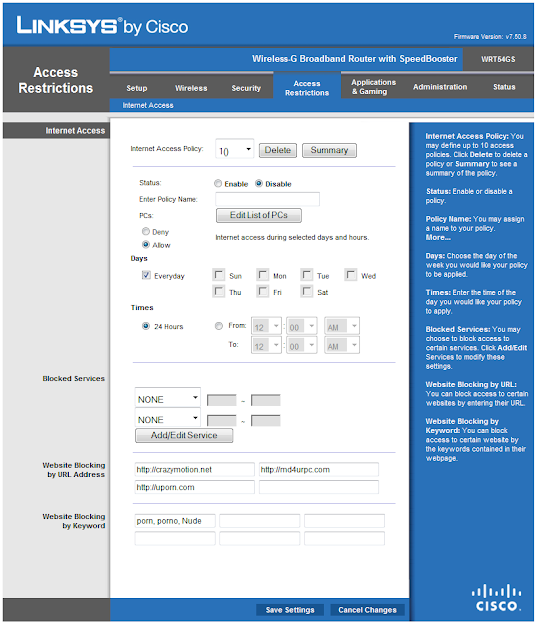
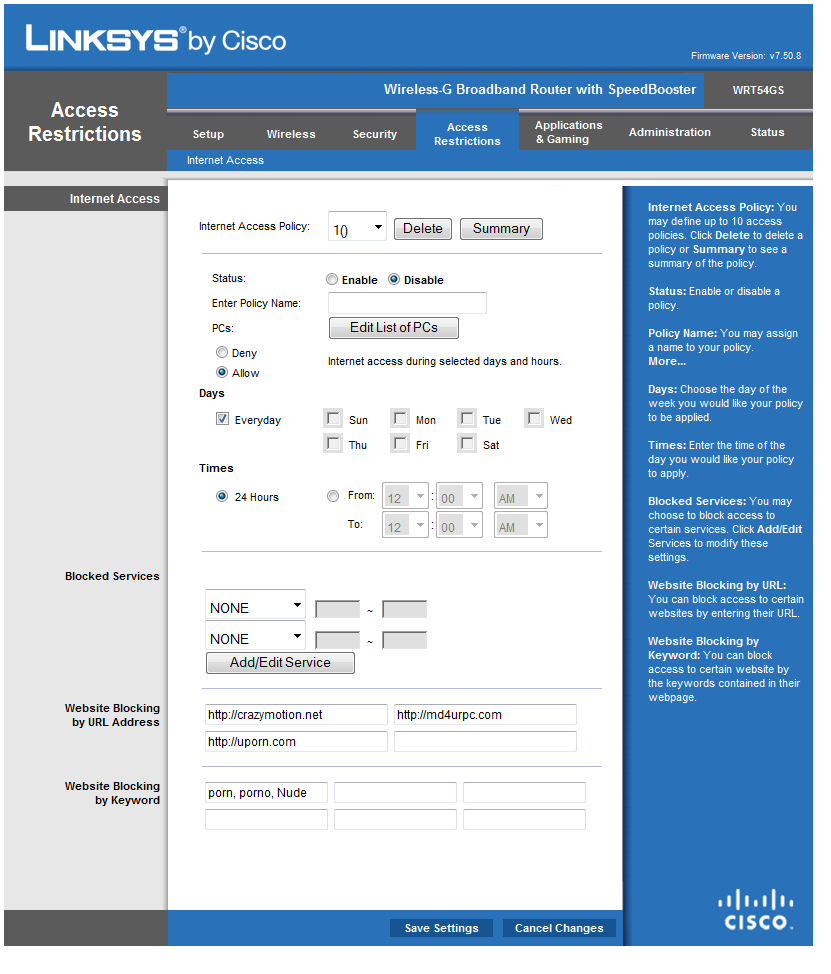
In the above pic as you can see using the Linksys (Cisco) Wireless router You can also set it to block certain websites or Keywords on a website.
Wednesday, April 21, 2010
How to Better secure your Wireless Internet.
As a quick reference, this table shows the default addresses, usernames, and passwords for some common router manufacturers. These are the default passwords. If you have one that you do not have the password to you can reset it By pressing the Button in most cases in the back with a small Pin. Should be near the power cord.

Your wireless network name, known as the SSID. This name identifies your network. You should choose something unique that none of your neighbors will be using.
Wireless encryption (WEP) or Wi-Fi Protected Access (WPA), which help protect your wireless network. For most routers, you will provide a passphrase that your router uses to generate several keys. Make sure your passphrase is unique and long (you don't need to memorize it).
Your administrative password, which controls your wireless network. Just like any other password, it should not be a word that you can find in the dictionary, and it should be a combination of letters, numbers, and symbols. Be sure you can remember this password, because you'll need it if you ever have to change your router's settings.
The exact steps you follow to configure these settings will vary depending on the type of router you have. After each configuration setting, be sure to click Save Settings, Apply, or OK to save your changes.
Now, you should disconnect the network cable from your computer.
Note: To make setup easy, choose a network adapter made by the same vendor that made your wireless router. For example, if you find a good price on a Linksys router, choose a Linksys network adapter to go with it. To make shopping even easier, buy a bundle, such as those available from D-Link, Netgear, Linksys, Microsoft, and Buffalo. If you have a desktop computer, make sure that you have an available USB port to plug the wireless network adapter into. If you don't have any open USB ports, buy a hub to add additional ports.

To connect your laptop or desktop computer to your wireless network, follow these steps:
1.Open Connect to a Network by clicking the Start button , and then clicking Connect to.
2.In the list of networks, click the network that you want to connect to, and then click Connect.

Internet Explorer will show your router's configuration page. Most of the default settings should be fine, but you should configure three things:
Your wireless network name, known as the SSID. This name identifies your network. You should choose something unique that none of your neighbors will be using.

Your administrative password, which controls your wireless network. Just like any other password, it should not be a word that you can find in the dictionary, and it should be a combination of letters, numbers, and symbols. Be sure you can remember this password, because you'll need it if you ever have to change your router's settings.
The exact steps you follow to configure these settings will vary depending on the type of router you have. After each configuration setting, be sure to click Save Settings, Apply, or OK to save your changes.
Now, you should disconnect the network cable from your computer.
A wireless router
The router converts the signals coming across your Internet connection into a wireless broadcast, sort of like a cordless phone base station. Be sure to get a wireless router, and not a wireless access pointA wireless network adapter
Network adapters wirelessly connect your computer to your wireless router. If you have a newer computer you may already have wireless capabilities built in. If this is the case, then you will not need a wireless network adapter. If you need to purchase an adapter for a desktop computer, buy a USB wireless network adapter. If you have a laptop, buy a PC card-based network adapter. Make sure that you have one adapter for every computer on your network.Note: To make setup easy, choose a network adapter made by the same vendor that made your wireless router. For example, if you find a good price on a Linksys router, choose a Linksys network adapter to go with it. To make shopping even easier, buy a bundle, such as those available from D-Link, Netgear, Linksys, Microsoft, and Buffalo. If you have a desktop computer, make sure that you have an available USB port to plug the wireless network adapter into. If you don't have any open USB ports, buy a hub to add additional ports.

The above picture shows A laptop and a desktop connected To a wireless router, Then through the Modem.
Also the desktop is Connected with the Ethernet cord. This is how you get into the router Much faster is with the Ethernet cord, Once your wireless is set up and Secured with a password You can save all the settings and unplug the Ethernet cord from the desktop, Giving it is wireless. If not leave it pluged in.
Windows XP
Now if friends or family come over and want onto your Wireless.
1.Open Connect to a Network by clicking the Start button , and then clicking Connect to.
2.In the list of networks, click the network that you want to connect to, and then click Connect.
Windows 7
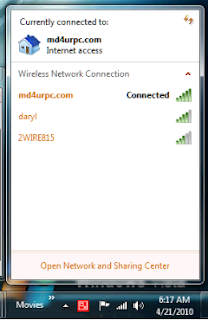
Bottom right corner on windows 7 left click the Icon for the internet and the wireless networks available show up. Find your network and click on it then enter the password when prompted.
Windows Vista
1.Open Network and Sharing Center by clicking the Start button , clicking Control Panel, clicking Network and Internet, and then clicking Network and Sharing Center.
2.In the left pane, click Set up a connection or network.
3.Click Set up a wireless router or access point, and then click Next
Tips on how to improve your wireless
10 tips for improving your wireless network
If Windows ever notifies you about a weak signal, it probably means your connection isn't as fast or as reliable as it could be. Worse, you might lose your connection entirely in some parts of your home. If you're looking to improve the signal for your wireless network, try some of these tips for extending your wireless range and improving your wireless network performance.
1. Position your wireless router (or wireless access point) in a central location
When possible, place your wireless router in a central location in your home. If your wireless router is against an outside wall of your home, the signal will be weak on the other side of your home. Don't worry if you can't move your wireless router, because there are many other ways to improve your connection.
2. Move the router off the floor and away from walls and metal objects (such as metal file cabinets)
Metal, walls, and floors will interfere with your router's wireless signals. The closer your router is to these obstructions, the more severe the interference, and the weaker your connection will be.
3. Replace your router's antenna
The antennas supplied with your router are designed to be omni-directional, meaning they broadcast in all directions around the router. If your router is near an outside wall, half of the wireless signals will be sent outside your home, and much of your router's power will be wasted. Most routers don't allow you to increase the power output, but you can make better use of the power. Upgrade to a hi-gain antenna that focuses the wireless signals only one direction. You can aim the signal in the direction you need it most.
4. Replace your computer's wireless network adapter
Wireless network signals must be sent both to and from your computer. Sometimes, your router can broadcast strongly enough to reach your computer, but your computer can't send signals back to your router. To improve this, replace your laptop's PC card-based wireless network adapter with a USB network adapter that uses an external antenna. In particular, consider the Hawking Hi-Gain Wireless USB network adapter, which adds an external, hi-gain antenna to your computer and can significantly improve your range.
Laptops with built-in wireless typically have excellent antennas and don't need to have their network adapters upgraded.
5. Add a wireless repeater
Wireless repeaters extend your wireless network range without requiring you to add any wiring. Just place the wireless repeater halfway between your wireless access point and your computer, and you'll get an instant boost to your wireless signal strength. Check out the wireless repeaters from ViewSonic, D-Link, Linksys, and Buffalo Technology.
6. Change your wireless channel
Wireless routers can broadcast on several different channels, similar to the way radio stations use different channels. In the United States and Canada, these channels are 1, 6, and 11. Just like you'll sometimes hear interference on one radio station while another is perfectly clear, sometimes one wireless channel is clearer than others. Try changing your wireless router's channel through your router's configuration page to see if your signal strength improves. You don't need to change your computer's configuration, because it'll automatically detect the new channel.
7. Reduce wireless interference
If you have cordless phones or other wireless electronics in your home, your computer might not be able to "hear" your router over the noise from the other wireless devices. To quiet the noise, avoid wireless electronics that use the 2.4GHz frequency. Instead, look for cordless phones that use the 5.8GHz or 900MHz frequencies.
8. Update your firmware or your network adapter driver
Router manufacturers regularly make free improvements to their routers. Sometimes, these improvements increase performance. To get the latest firmware updates for your router, visit your router manufacturer's Web site.
Similarly, network adapter vendors occasionally update the software that Windows uses to communicate with your network adapter, known as the driver. These updates typically improve performance and reliability. To get the driver updates, do the following:
Windows 7 and Windows Vista
Windows XP
Visit Microsoft Update, click Custom, and then wait while Windows XP looks for the latest updates for your computer.
Install any updates relating to your wireless adapter.
9. Pick equipment from a single vendor
While a Linksys router will work with a D-Link network adapter, you often get better performance if you pick a router and network adapter from the same vendor. Some vendors offer a performance boost of up to twice the performance when you choose their hardware: Linksys has the SpeedBooster technology, and D-Link has the 108G enhancement.
10. Upgrade 802.11b devices to 802.11g
802.11b is the most common type of wireless network, but 802.11g is about five times faster. 802.11g is backward-compatible with 802.11b, so you can still use any 802.11b equipment that you have. If you're using 802.11b and you're unhappy with the performance, consider replacing your router and network adapters with 802.11g-compatible equipment. If you're buying new equipment, definitely choose 802.11g.
Wireless networks never reach the theoretical bandwidth limits. 802.11b networks typically get 2-5Mbps. 802.11g is usually in the 13-23Mbps range. Belkin's Pre-N equipment has been measured at 37-42Mbps
Click Start menu, click All Programs, and then click Windows Update.
In the left pane, click Check for updates, and then wait while Windows Vista looks for the latest updates for your computer.
Install any updates relating to your wireless network adapter
Windows XP
Subscribe to:
Posts (Atom)


