Search This Blog

GeoString

Showing posts with label restore. Show all posts

Monday, June 7, 2010

Services ! Speeding up your PC

There are system services that you can disable to free up the system's load. To access the interface that permits you to make changes to system's services, type services.msc and the command prompt.


This is a list of services that are *usually* useless and can be safely disabled.


Alerter

Application Layer Gateway Service,

Application Management

Automatic Updates

Background Intelligent Transfer

Clipbook

Distributed Link Tracking Client

Distributed Transaction Coordinater

Error Reporting Service

Fast User Switching Compatibility

IMAPI CD-Burning

Indexing Service

IPSEC Services

Messenger

Net Logon

Net Meeting

Remote Desktop Sharing

Network DDE

Network DDE DSDM

Portable Media Serial Number

Remote Desktop Help Session Manager

Remote Registry

Secondary Logon

Smartcard

SSDP Discovery Service

Uninterruptible Power Supply

Universal Plug and Play Device Host

Upload Manager

Webclient

Wireless Zero Configuration (If you have Wirelss Internet LEAVE this on)

WMI Performance Adaptor


Read all of the descriptions on each service to determine if you need it or not, Most things you will not if on

a desktop. Do one at a time and make sure your PC does not start acting funny or things not working properly before ending the Service's session.
 
 
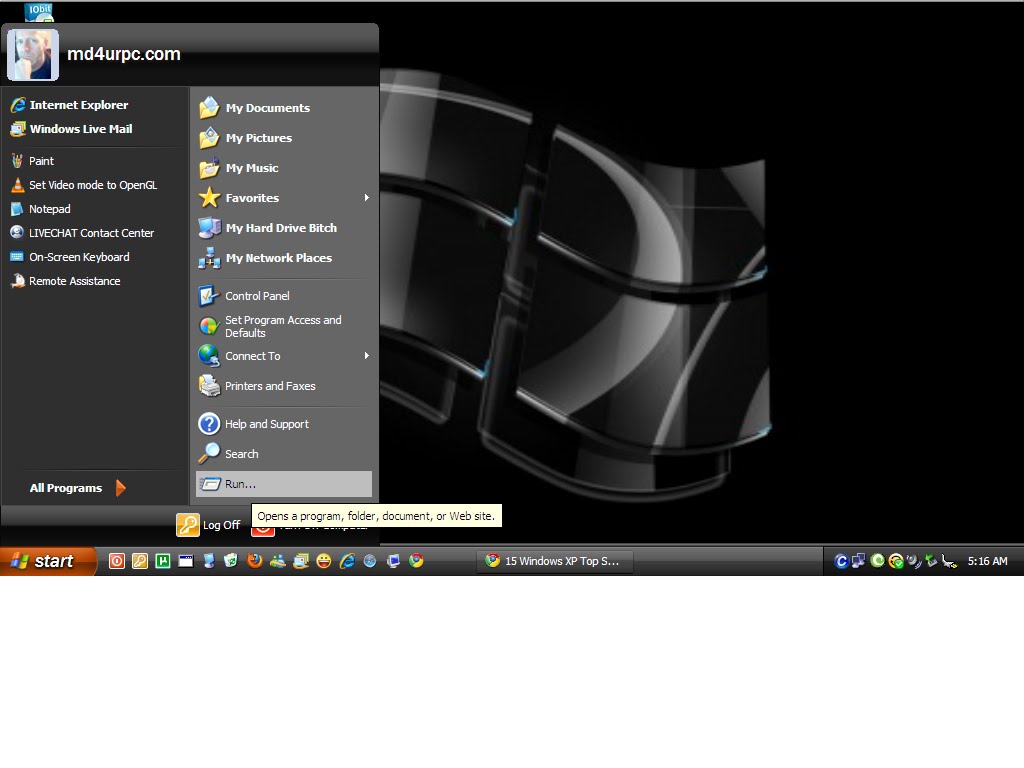
1. Click Start
2. Click RUN

Once you click on Run the Above Box should open, TYPE in the Box
services.msc  then hit ENTER


Then the above Window will open, Then scroll down to the above list to any single one, And double click on it. It will open another small window, With a drop down window for Automatic, Disable, Stop, start, manual.

On most you can put to manual, The ones you know your not going to use you can select Disable or stop.
Remember to read what it is before stopping it.

you can Email us with any questions

Windows 7 and Vista
1. click Start
2. in the seach window type in services.msc
3. Foloow the above directions.

Wednesday, April 28, 2010

Help your PC run faster, Vista and windows 7

1. Limit how many programs run at startup


There are a lot of programs that load automatically when you boot up your PC—which can really hamper performance. To manage these programs like a pro, learn how to get a comprehensive view of what's running:
Click the Start button , and type System Configuration in the search window. Select it from the list of results.

2. Select the Startup tab. The files set to run at startup are indicated with a check mark. You can uncheck nonessential programs—but make sure you only disable programs you're familiar with. When in doubt, leave it checked.
A clean machine is a fast machine.

1. Delete things like trial software
2. Anti-virus software that your not using or did not like. Get one that suits your needs.

How to do it.

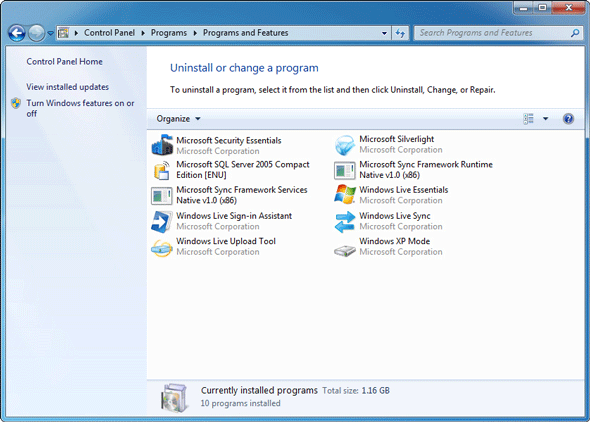
1. Click the Start button and select Control Panel.


2. Underneath Programs, click Uninstall a program. (If you don't see this page, change the View by option in the top right-hand corner to Category.)


3. Select the program you want to delete and click Uninstall.


Make ReadyBoost your friend


It's all very well to advise you to close programs you're not using—but just because you're not using it now doesn't mean you won't be using it in 10 minutes. The answer is ReadyBoost, a super helpful feature that can use the extra space on a flash card or USB storage device to speed up your PC. Plug in a compatible storage device and click Speed up my system when you see the AutoPlay dialog box.


Restart often and clean your hard disk


The more you use your PC, the more applications you use and the more services you're running. Closing an application doesn't always close the service. That's why rebooting fixes so many problems; it clears out the memory. Restart at least once a week. Your best bet? Turn off your PC every night. Not only will you clear out your memory, but you'll save energy to boot.
You should also make a habit of cleaning your hard disk to remove temporary files, emptying the Recycle Bin, and getting rid of system files you don't need any more:

1. Click the Start button , and type Disk Cleanup in the search window. Select it from the list of results.

2. After the utility runs, you'll see how much disk space you can free up.

3. Click OK, and then click Delete Files.


PC Common Problems


Locating the problem


Is your PC showing an error message? If so, write down the exact number and wording of the error message, and search for it on the Microsoft Fix it Solution Center. In many cases, the Fix it center provides a "hot fix," which is an automated solution you can run on your PC with just one click!

Even if you don’t see an error message, you may be able to find the solution in the Fix it center, either by topic or by searching. Ask yourself if the problem is related to hardware, software, or the operating system (such as Windows 7, Windows XP, or Windows Vista). The following are some common indicators that can help you decide which is the right answer.

If you're uncertain, don't worry. Just start at the top by determining if your software is working, using the Software errors section that follows. If the issue persists, proceed to the Hardware trouble section and then to the System failure section.

You can also find really helpful information at Microsoft Answers, a forum where you can search, browse, and post questions and answers. Community members – including Microsoft employees – answer the questions posted there. If you'd like to search by individual program, try the Product Solution Center.

The lists on the right side of this page may also help you narrow down the type of trouble you are experiencing.

Software errors

If programs refuse to install, won't appear on your desktop, can't seem to run without freezing, don't load at a decent speed or function properly, or Internet access is unavailable, here's how to troubleshoot:

General issues


Confirm that your PC meets the software's minimum system requirements. If it doesn't, you'll be unable to run the program without upgrading your computer's hardware. Note that PCs which barely meet or just slightly exceed these minimums may run the software more slowly and can be less reliable. Windows 7 and Windows Vista users can reference the Windows Experience Index to quickly gauge their PC's general capabilities.


Check for compatibility with Windows 7 and Windows Vista.


Close open programs and windows that you're not currently using. These can eat up system memory and processing power, slowing your PC or preventing additional software from running. Try running the program again.

Check available hard drive space. Roughly 5 to 10 percent of your hard drive's total storage allotment should be left free to ensure optimum system performance in Windows 7 and Windows Vista, prevent crashes, and keep Windows running at top speed.

Connect aTV tuner to Windows 7 Click HERE for details

Connect TV tunner to Vista

Repair your PC using the Startup Repair function.
Windows 7
Vista

Hard drive failure


In a worst-case scenario, system failure may be caused by a damaged or corrupted hard drive. There are many warning signs that may indicate this problem:

* Your system won't boot.
* No operating system is detected.
* The computer hangs during startup.
* Your PC is making strange noises.

If you are concerned about the safety of your files, try the following options before paying to send it to a data recovery specialist: Follow this link  Click HERE on how to Resurrect your Crashed Hard Drive.

Tuesday, March 9, 2010

Back up and Restore

http://www.microsoft.com/windows/windows-vista/features/backup.aspx

For a Full diagram with pics goto the above web siteThe file backup and restore features in Windows Vista help you keep your data safe from user error, hardware failure, and other problems. The Windows Backup and Restore Center gives you one place to manage all backup and restore features.Depending on the version of Windows Vista you have, there are two approaches you can take to backing up files: Automatic Backup, which backs up just your files and data; or Complete PC Backup, which backs up everything on your PC, including the operating system and applications.Automatic BackupAutomatic File Backup helps to keep your files safe and can be found in almost all editions of Windows Vista (it is not included in Starter and has only basic functionality in Home Basic edition). Windows Complete PC Backup is available in the Business, Ultimate, and Enterprise editions, and performs a complete, image-based backup of the entire computer.Backup your files and your work.Scheduled and Network BackupTwo particularly useful Automatic Backup features are the ability to do a scheduled backup and the ability to back up your files to a network location. (These features are available in all editions of Windows Vista except for Home Basic.)To help make protecting your files as convenient as possible, with Automatic Backup, you can back up your files to an external hard drive, secondary hard drive, writable CD or DVD, or to a network location. Windows Vista can also automatically make backups of your data on the schedule that you set.File Backup Scheduling Wizard lets you schedule when backups occur.A recovery wizard helps you select the files or folders you want to restore and prompts you for the backup storage medium you used. Then it restores your files.By the way, if you've accidentally written over a file, say saving an older version of a report you're writing over the top of a newer version, then the Shadow Copy feature can help you recover a prior version of that file.Windows Complete PC Backup and RestoreAvailable in Windows Vista Business, Ultimate, and Enterprise editions, Windows Complete PC Backup and Restore is a comprehensive, image-based backup tool that will help you out of a tight spot if you need to recover your entire system.While file restore is useful in cases of file loss and data corruption, Windows Complete PC Backup and Restore is most useful for disaster recovery when your PC malfunctions. This feature helps you create complete PC backups, and then in the event of a serious system issue or data loss, Windows Complete PC Backup and Restore can restore your entire PC environment, including the operating system, installed programs, user settings, and data files.You can restore your PC back to its original state or onto another PC. Windows Complete PC Backup and Restore can be initiated from within Windows Vista or from the Windows Vista installation CD, if the PC is not able to start up normally from the hard disk.System RestoreSystem Restore enables you to restore your computer to an earlier state without losing data. This is ideal if your computer is not operating well because of a configuration change, a problem with an application, or the introduction of viruses or other unwanted software. By restoring to an earlier point—a point before your computer began displaying problems—you may be able to easily resolve the problems. (Applications that have been installed since the restore point will be removed.) You don't have to worry about taking periodic system snapshots—System Restore automatically creates easily identifiable restore points. You can also manually create restore points at any time.