
Uninstall all antivirus, antispyware, firewall software.
Start
run
cmd
Click OK
del %temp% /f /a /q /s
start msconfig
Click on the Startup TAB
uncheck everything
reboot
Poof, new computer for free.
Thursday, April 22, 2010


Wednesday, April 21, 2010
Make your PC easier to see.
Increase the size of your icons
You can also quickly make just the icons on your desktop larger and easier to see.
Right-click the desktop, point to View, and then click Large Icons, Medium Icons, or Classic Icons. (Classic icons are the smallest size.) .
You can also use the scroll wheel on your mouse to change the size of your desktop icons.
On the desktop, press and hold CTRL while you scroll by using the wheel to change the icon size.
Use the Magnifier
You may have been using Windows for years and not realized there is a built in Magnifier that enlarges part of the screen. You can adjust the Magnifier to zoom in at various levels and focus wherever you want to focus on the screen.
Windows 7
Click Start, Type in magnifier in the search and open it. Then click the View Button, Scroll down to what View you want.Also you can HOLD down the CTRL and the Plus Sign to Zoom in and the minus sign to zoom out.
Windows Vista
Magnifier in Windows 7 includes full-screen and lens modes. Full-screen mode lets you magnify your entire screen and follow your mouse pointer. In lens mode, the area around the mouse pointer is magnified. When you move the mouse pointer, the area of the screen that is magnified moves along with it.Enlarge your mouse pointer
You can change the look of your mouse cursor so it is easier for you to quickly and easily see on-screen. Try selecting a new pointer style, and also try changing the color and size of your mouse pointer.
Windows 7
Click the Start button , click Control Panel, and then under Hardware and Sound, click Mouse.
Click the Pointers tab, and then do one of the following:
To change the look of all of your pointers, in the Scheme list, click a new mouse pointer scheme.
To change an individual pointer, in the Customize list, click the pointer you want to change, click Browse, click a pointer, and then click Open.
More ways to change your mouse settings.
Windows Vista
Click the Start button , click Control Panel, and then under Hardware and Sound, click Mouse.
Click the Pointers tab, and then do one of the following:
To change the look of all of your pointers, in the Scheme list, click a new mouse pointer scheme.
To change an individual pointer, in the Customize list, click the pointer you want to change, click Browse, click a pointer, and then click Open.
Improve your screen resolution
Screen resolution refers to the clarity of the text and images on your screen. At higher resolutions, items appear sharper, but they also appear smaller, so more items fit on the screen. At lower resolutions, fewer items fit on the screen, but they are larger and easier to see. Choose a screen resolution that is better for your eyes
To see Video on how to use these features and others, Please visit us on youtube
How to Better secure your Wireless Internet.
As a quick reference, this table shows the default addresses, usernames, and passwords for some common router manufacturers. These are the default passwords. If you have one that you do not have the password to you can reset it By pressing the Button in most cases in the back with a small Pin. Should be near the power cord.

Your wireless network name, known as the SSID. This name identifies your network. You should choose something unique that none of your neighbors will be using.
Wireless encryption (WEP) or Wi-Fi Protected Access (WPA), which help protect your wireless network. For most routers, you will provide a passphrase that your router uses to generate several keys. Make sure your passphrase is unique and long (you don't need to memorize it).
Your administrative password, which controls your wireless network. Just like any other password, it should not be a word that you can find in the dictionary, and it should be a combination of letters, numbers, and symbols. Be sure you can remember this password, because you'll need it if you ever have to change your router's settings.
The exact steps you follow to configure these settings will vary depending on the type of router you have. After each configuration setting, be sure to click Save Settings, Apply, or OK to save your changes.
Now, you should disconnect the network cable from your computer.
Note: To make setup easy, choose a network adapter made by the same vendor that made your wireless router. For example, if you find a good price on a Linksys router, choose a Linksys network adapter to go with it. To make shopping even easier, buy a bundle, such as those available from D-Link, Netgear, Linksys, Microsoft, and Buffalo. If you have a desktop computer, make sure that you have an available USB port to plug the wireless network adapter into. If you don't have any open USB ports, buy a hub to add additional ports.

To connect your laptop or desktop computer to your wireless network, follow these steps:
1.Open Connect to a Network by clicking the Start button , and then clicking Connect to.
2.In the list of networks, click the network that you want to connect to, and then click Connect.

Internet Explorer will show your router's configuration page. Most of the default settings should be fine, but you should configure three things:
Your wireless network name, known as the SSID. This name identifies your network. You should choose something unique that none of your neighbors will be using.

Your administrative password, which controls your wireless network. Just like any other password, it should not be a word that you can find in the dictionary, and it should be a combination of letters, numbers, and symbols. Be sure you can remember this password, because you'll need it if you ever have to change your router's settings.
The exact steps you follow to configure these settings will vary depending on the type of router you have. After each configuration setting, be sure to click Save Settings, Apply, or OK to save your changes.
Now, you should disconnect the network cable from your computer.
A wireless router
The router converts the signals coming across your Internet connection into a wireless broadcast, sort of like a cordless phone base station. Be sure to get a wireless router, and not a wireless access pointA wireless network adapter
Network adapters wirelessly connect your computer to your wireless router. If you have a newer computer you may already have wireless capabilities built in. If this is the case, then you will not need a wireless network adapter. If you need to purchase an adapter for a desktop computer, buy a USB wireless network adapter. If you have a laptop, buy a PC card-based network adapter. Make sure that you have one adapter for every computer on your network.Note: To make setup easy, choose a network adapter made by the same vendor that made your wireless router. For example, if you find a good price on a Linksys router, choose a Linksys network adapter to go with it. To make shopping even easier, buy a bundle, such as those available from D-Link, Netgear, Linksys, Microsoft, and Buffalo. If you have a desktop computer, make sure that you have an available USB port to plug the wireless network adapter into. If you don't have any open USB ports, buy a hub to add additional ports.

The above picture shows A laptop and a desktop connected To a wireless router, Then through the Modem.
Also the desktop is Connected with the Ethernet cord. This is how you get into the router Much faster is with the Ethernet cord, Once your wireless is set up and Secured with a password You can save all the settings and unplug the Ethernet cord from the desktop, Giving it is wireless. If not leave it pluged in.
Windows XP
Now if friends or family come over and want onto your Wireless.
1.Open Connect to a Network by clicking the Start button , and then clicking Connect to.
2.In the list of networks, click the network that you want to connect to, and then click Connect.
Windows 7
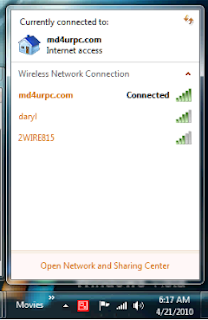
Bottom right corner on windows 7 left click the Icon for the internet and the wireless networks available show up. Find your network and click on it then enter the password when prompted.
Windows Vista
1.Open Network and Sharing Center by clicking the Start button , clicking Control Panel, clicking Network and Internet, and then clicking Network and Sharing Center.
2.In the left pane, click Set up a connection or network.
3.Click Set up a wireless router or access point, and then click Next
Subscribe to:
Posts (Atom)


